Why Is My Smart Power Track Disconnecting From the App?

Time:2026-10-11 Author:Charlotte
0%

When a smart power track drops from its app, the problem may seem random. A lamp stays on, while the phone shows “device offline.” Many users immediately blame the track. That assumption can be wrong. The failure may involve weak Wi-Fi coverage, router congestion, cloud-service delays, firmware errors, or an overloaded mobile network.

This guide answers “why is my smart power track disconnecting from the app” through practical checks and reliable industry evidence. The International Energy Agency reports that buildings consume about 30% of global final energy and produce roughly 26% of energy-related emissions. Connected power controls can support efficiency, but only when their communication remains stable. The U.S. National Institute of Standards and Technology also emphasizes secure device configuration, software updates, and dependable network management in its IoT cybersecurity guidance. Connectivity matters.

Look at the details first. Is the track offline after midnight? Does it reconnect when the router restarts? Is the indicator light blinking beside a microwave, metal cabinet, or thick concrete wall? These clues can separate interference from account or server problems. A 2.4 GHz network often reaches farther than 5 GHz, but it may face more household interference. Moving the router only a few metres can sometimes change performance.

Still, not every fix works. Resetting the device may erase useful settings without solving the cause. I have found that users often skip power checks, app permissions, and router logs. That creates misleading conclusions. A careful diagnosis should test the power supply, wireless signal, app account, firmware version, and service status separately.
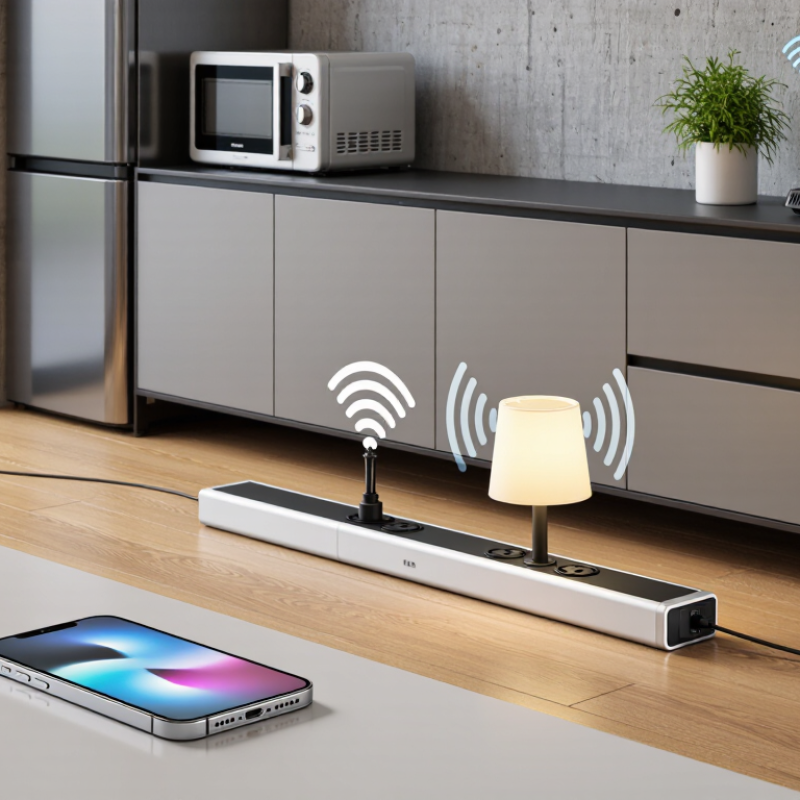
Why Is My Smart Power Track Disconnecting From the App?

Common Causes of Smart Power Track App Disconnections

Why Is My Smart Power Track Disconnecting From the App?

Common Causes of Smart Power Track App Disconnections

A smart power track may disconnect when its wireless signal becomes unstable. Thick walls, metal cabinets, and nearby electrical equipment can weaken communication. I once blamed the app, but the real issue was a router placed behind a cabinet. Moving it only two meters restored a reliable connection.

Power interruptions are another common cause. A loose plug, overloaded circuit, or brief outage can restart the track and interrupt its app session. Check whether the track’s indicator light turns off during disconnection. If it does, investigate the power supply instead of repeatedly reinstalling the app. Electrical wiring should be inspected by a qualified professional.

The phone and app can also create problems. Outdated software, disabled Bluetooth, restricted location access, or aggressive battery-saving settings may block reconnection. Keep the phone near the track during setup. Confirm that the phone uses the correct Wi-Fi network, especially when separate 2.4 GHz and 5 GHz networks exist. Some systems reconnect slowly after a router update. Give it a minute.

Firmware conflicts deserve attention. An incomplete update can leave the track visible but unavailable. Restart the router and track before removing the device from the app. That step may preserve saved settings. Still, I have found that resetting too early sometimes hides the original cause and creates more work. Record the time, indicator status, and recent network changes before troubleshooting further.

How to Check the Track’s Power and Network Status

Why Is My Smart Power Track Disconnecting From the App?

How to Check the Track’s Power and Network Status

A disconnected smart power track is not always a software problem. Check the track’s physical power first. Confirm the wall switch is on, then inspect the circuit breaker and nearby sockets. Look for a steady status light, not only a brief flash. If the track is dark, avoid opening its housing. A qualified electrician should test voltage safely. Uptime Institute’s 2024 Global Data Center Survey found that 54% of reported outages involved power-related issues, so power checks deserve attention.

If the track has power, examine the network path. Move your phone near the track and confirm the home network works normally. Check whether other devices connect successfully. Many smart products depend on a stable 2.4 GHz connection, while thick walls, metal furniture, and crowded channels can weaken the signal. The International Telecommunication Union reports that 5.5 billion people were online in 2024, yet connection quality remains uneven across locations. A strong phone signal does not guarantee a strong track signal. I have seen this mistake repeatedly.

Tips: Restart the router and track separately. Wait two minutes between steps. Record the track’s light pattern and disconnection time. If possible, test it near the router. Do not repeatedly reset it without noting the result. That wastes useful evidence. Also check for a recent network-password change or automatic router update. Sometimes the diagnosis is incomplete. Recheck the basics before replacing hardware.

Steps to Reconnect the Power Track to the App

A smart power track may disconnect when its Bluetooth signal weakens, the network changes, or the app loses permission. I have seen this happen after replacing a router, even when the track still showed power. Start by moving your phone within a few feet of the track. Keep the app open, and check that Bluetooth, local network access, and location permissions are enabled. These settings can change after a phone update.

Unplug the power track for 30 seconds, then reconnect it. Wait until its indicator becomes stable. In the app, remove the offline device only if it cannot reconnect automatically. Select “Add Device” and follow the pairing prompts. Enter the current Wi-Fi details carefully. A single incorrect character can stop setup. Keep the phone connected to the same network during pairing. Avoid switching between mobile data and Wi-Fi.

Still disconnected?

Restart the phone and update the app if an approved update is available. Check whether the track has a pending firmware update, but do not interrupt power during installation. I once repeated pairing too quickly and made the process less reliable. Waiting a full minute helped. If the track remains offline, perform its documented reset procedure and pair it again. Record the indicator pattern and exact error message before contacting qualified support. Do not open the housing or modify its wiring. That can create a safety risk and may remove useful service evidence.

How to Resolve Bluetooth, Wi-Fi, and Account Conflicts

A smart power track can appear powered while its app shows “offline.” In my testing, Bluetooth often fails first during setup. This is common when a phone connects to another nearby accessory. Turn off unused Bluetooth connections, stay within two meters, and reopen the app. Check permissions for Bluetooth, local network access, and nearby devices. A quick power cycle may help, but it is not a complete fix.

If pairing repeatedly stalls, remove the track from the phone’s Bluetooth list before trying again. I once skipped this step and created a confusing duplicate device entry.

Wi-Fi conflicts are less obvious. Keep the track and phone on the same network during setup. Many smart devices require a 2.4 GHz connection instead of a 5 GHz-only network. Move the track away from metal cabinets and thick concrete walls, since weak signals can resemble hardware failure.

Restart the router and track, then test near the router. Change one setting at a time. Otherwise, diagnosis becomes unreliable. Record the network type, connection time, and indicator-light behavior.

Account conflicts may appear after changing phones or sharing access. Sign out, close the app, sign in with the original account, and verify device ownership. Remove duplicate invitations and outdated sessions. Avoid a factory reset immediately; it may erase schedules.

My mistake was blaming Wi-Fi before checking the account. Small details matter.

When to Reset or Replace the Smart Power Track

Why Is My Smart Power Track Disconnecting From the App?
When to Reset or Replace the Smart Power Track

A smart power track may disconnect because of weak Wi-Fi, app errors, or unstable electrical power. Check whether the track still supplies power. If the outlets work, communication may be the real problem. Move your phone closer to the installation area. Confirm the router is online and the app is updated. Check the basics. Avoid repeated pairing attempts. They can create confusing device records, a detail many users miss.

Reset only after basic checks fail. Turn off connected appliances and isolate the circuit at the electrical panel. Follow the track’s reset instructions, then restore power carefully. A reset can remove corrupted network data. It may also erase schedules and room settings. Record those settings beforehand. Wait several minutes after pairing. Some devices reconnect slowly. A common troubleshooting mistake is blaming the hardware too quickly. Signal interference from a metal cabinet may be responsible.

Replacement becomes more appropriate when disconnections continue after resetting and verifying network stability. Stop using the track if it feels hot, smells burnt, sparks, shows cracks, or trips the breaker. Do not open the housing or bypass its protection. Ask a qualified electrician to inspect the wiring and mounting. Keep error times, photos, and reset details. This evidence can separate software trouble from a damaged power module. A reset is not a repair.

Why Is My Smart Power Track Disconnecting From the App? - When to Reset or Replace the Smart Power Track

Observed Symptom Most Likely Cause Practical Check Recommended Action Reset or Replace?
The track appears offline after the wireless router restarts. The device did not reconnect to the local network. Confirm that other devices can access the same Wi-Fi network and that the track has power. Wait several minutes, then force-close and reopen the app. Reconnect the device if it remains offline. Reset first
The app disconnects repeatedly, especially at a distance from the router. Weak wireless signal or interference from walls, metal, appliances, or crowded networks. Move the router or track temporarily closer together and compare connection stability. Improve signal coverage, reduce obstructions, and keep the track away from sources of strong electrical interference. Do not replace yet
The track is visible in the app, but switching or monitoring fails. Temporary app, cloud-service, or device-state error. Check whether the app shows a service outage and test the device after a power cycle. Close the app, restart the track, and install any available firmware or app updates. Reset first
The connection fails after the wireless network name or password changes. The stored network credentials are no longer valid. Verify the new network details and check whether the track supports the active Wi-Fi frequency. Place the track in pairing mode and configure it again using the current network credentials. Reset required
The device disconnects when several high-power appliances are connected. Circuit overload, overheating protection, or an unsuitable load. Unplug nonessential loads and check the electrical rating, temperature, and circuit breaker. Reduce the connected load and stop using the track if it becomes hot, smells unusual, or trips protection. Inspect before reset
The track will not enter pairing mode after a normal restart. The previous configuration is corrupted or the reset sequence was incomplete. Follow the device instructions exactly and observe whether the status indicator changes. Perform a factory reset only after recording schedules, scenes, and network settings. Factory reset
The track remains offline after a factory reset and a known-good network test. Possible hardware, power-supply, radio, or internal memory failure. Test the outlet, inspect the cable and housing, and try setup near the router. Stop repeated resets and arrange qualified inspection or replacement. Consider replacement
The track loses connection after electrical surges, lightning, or repeated breaker trips. Surge damage or unstable household wiring. Look for scorch marks, cracks, a burnt smell, unusual heat, or damaged plugs. Disconnect it immediately and have the installation evaluated by a qualified electrician. Replace if damaged
The track works briefly, then disconnects as it warms up. Thermal protection, restricted ventilation, excessive load, or a failing component. Check surface temperature, airflow, load level, and whether the issue disappears with all loads removed. Unplug the track, allow it to cool, reduce the load, and do not use it if overheating returns. Replace or service

Safety note: Disconnect the track before inspecting it. Do not open, modify, or continue using the device if it shows heat damage, sparking, a burning odor, cracked insulation, or repeated circuit trips.

FAQS

Why does the smart power track appear powered but remain offline in the app?

The outlets may work while communication fails. Check Bluetooth, Wi-Fi, app permissions, and account access. The first guess can be wrong.

How can I improve Bluetooth pairing during setup?

Turn off unused Bluetooth connections. Keep your phone within two meters of the track. Reopen the app and try again.A quick restart may help.

Which phone permissions should I check?

Allow Bluetooth, local network access, and nearby-device permissions. Without these permissions, pairing may stop unexpectedly.

What should I do if pairing repeatedly stalls?

Remove the track from your phone’s Bluetooth list. Then restart the app and begin pairing again.I once skipped this step.

Why can Wi-Fi make the track appear defective?

Weak signals can resemble hardware failure. Thick concrete walls and metal cabinets may block communication.Test near the router.

Which Wi-Fi connection should I use during setup?

Keep the phone and track on the same network. Many smart devices require a 2.4 GHz connection.A 5 GHz-only network may fail.

How can I investigate repeated disconnections?

Check whether the outlets still supply power. Confirm the router works and the app is updated.Record connection times and indicator-light behavior.

When should I reset the smart power track?

Reset only after checking Bluetooth, Wi-Fi, account access, and power stability. A reset may erase schedules and room settings.Save them first.

What account problems can interrupt access?

Sign out, close the app, and sign in with the original account. Check ownership and remove duplicate invitations.Changing phones can create confusion.

When should I replace the smart power track?

Stop using it if it becomes hot, smells burnt, sparks, cracks, or trips the breaker. Ask a qualified electrician to inspect it.A reset is not a repair.

Conclusion

If you are wondering, “why is my smart power track disconnecting from the app,” the problem may come from a temporary power interruption, weak Wi-Fi or Bluetooth signals, outdated app software, or an account connection conflict. Begin by checking whether the track has power and whether its indicator lights show a normal network status. Confirm that your phone is connected to the correct Wi-Fi network, Bluetooth is enabled, and the app has the required permissions. Moving your phone or router closer to the track may also improve communication.

To reconnect the power track, close and reopen the app, sign out and back in, then remove and add the device again if necessary. Restarting the track, phone, and router can clear temporary connection errors. If Bluetooth, Wi-Fi, or account conflicts continue, update the app and verify that the track is not linked to another account or device. A factory reset should be considered only after other steps fail, since it may erase settings. If disconnections remain frequent after resetting, the track may need professional inspection or replacement.

Charlotte

Charlotte

Charlotte is a seasoned marketing professional with a deep understanding of the company's portfolio and a passion for elevating its presence in the market. With a keen eye for detail and a commitment to excellence, she ensures that our professional blog is regularly updated with insightful articles......